OpenAI has introduced Developer Mode (beta) in the web version of ChatGPT, now featuring full MCP support for Business, Enterprise, and Education plans.
With this update, you can now connect any of your internal systems — such as CRMs, databases, or project management tools — directly to ChatGPT. This means the assistant can not only access your data but also take real actions in your existing tools, securely and on demand.
Integration with Business Tools
Developer Mode transforms ChatGPT into a centralized automation interface that can connect directly to your company’s internal systems and external apps.
This lets users connect tools and interact with them directly via natural language, without switching between apps. Routine operations become faster, and access to information is unified in a single chat window.
Custom and Prebuilt Connectors
External systems connect through MCP connectors — small integration modules that can be built in-house or selected from an open-source library. Workspace admins or designated developers can upload custom connectors for private testing to ensure data is read and written correctly before publication. All actions that modify data require explicit user confirmation, enhancing security. Once verified, only an admin can publish a connector, making it available to the team.
Access Management and Security
These features are aimed primarily at corporate developers and administrators and are unavailable on free plans. On Business plans, only admins can access Developer Mode.
On Enterprise and Education plans, organizations can use Role-Based Access Control (RBAC) to specify who can develop, test, or use connectors. This enables secure, step-by-step deployment of AI integrations across teams, with full auditability. OpenAI emphasizes that Developer Mode is a “powerful but potentially dangerous” tool and should be configured with caution.
On Enterprise and Education plans, organizations can use Role-Based Access Control (RBAC) to specify who can develop, test, or use connectors. This enables secure, step-by-step deployment of AI integrations across teams, with full auditability. OpenAI emphasizes that Developer Mode is a “powerful but potentially dangerous” tool and should be configured with caution.
Availability by Plan
- Business plans: Only workspace admins and owners can enable Developer Mode and deploy MCP connectors. Individual members cannot have separate permissions.
- Enterprise/Education plans: Admins can use RBAC to grant Developer Mode access to selected team members, allowing them to build and test connectors before publishing.
How to Enable Developer Mode
To activate Developer Mode and start building MCP connectors:
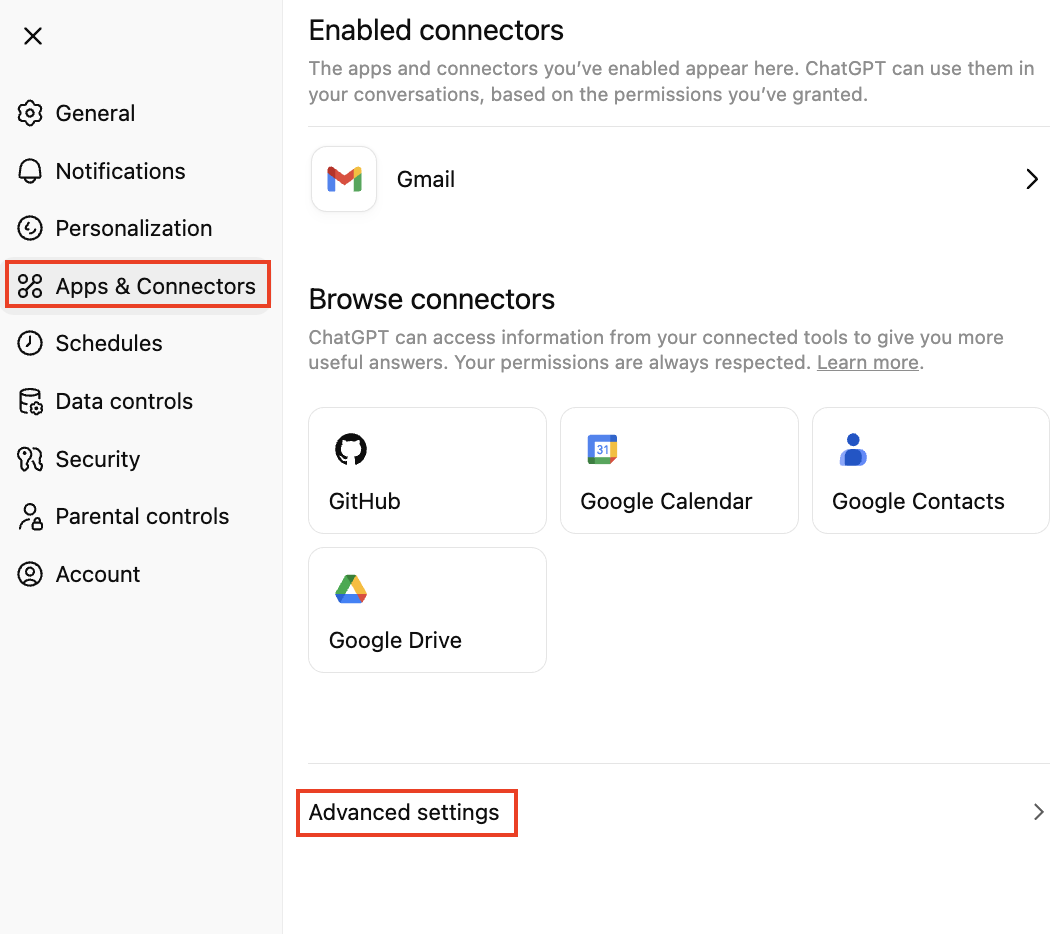
Step 1. Go to Workspace Settings → App & Connectors. Open "Advanced settings" tab.
Step 2. Enable developer mode.
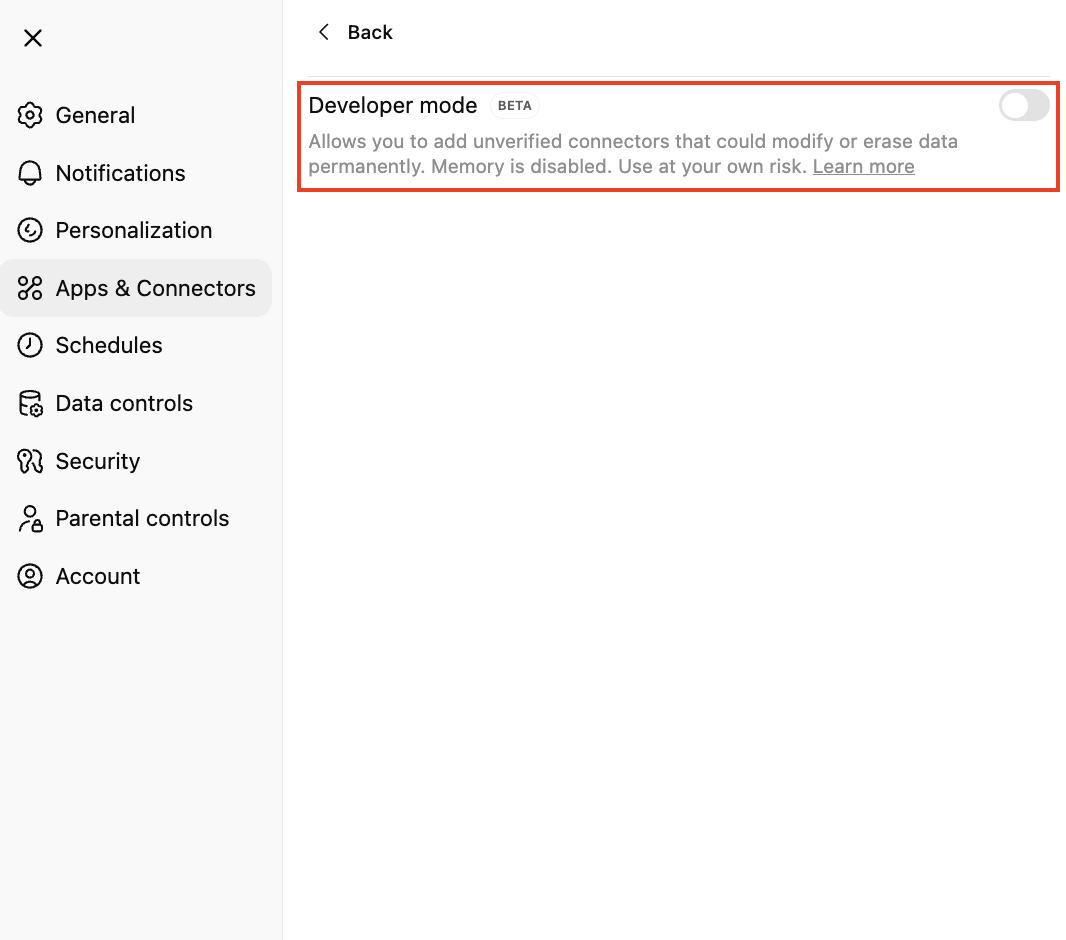
Once enabled, developers can add and test custom connectors, and admins can publish approved ones for workspace-wide use.
Creating and Testing a Custom Connector
After Developer Mode is enabled, authorized users can create new MCP connectors from their settings:
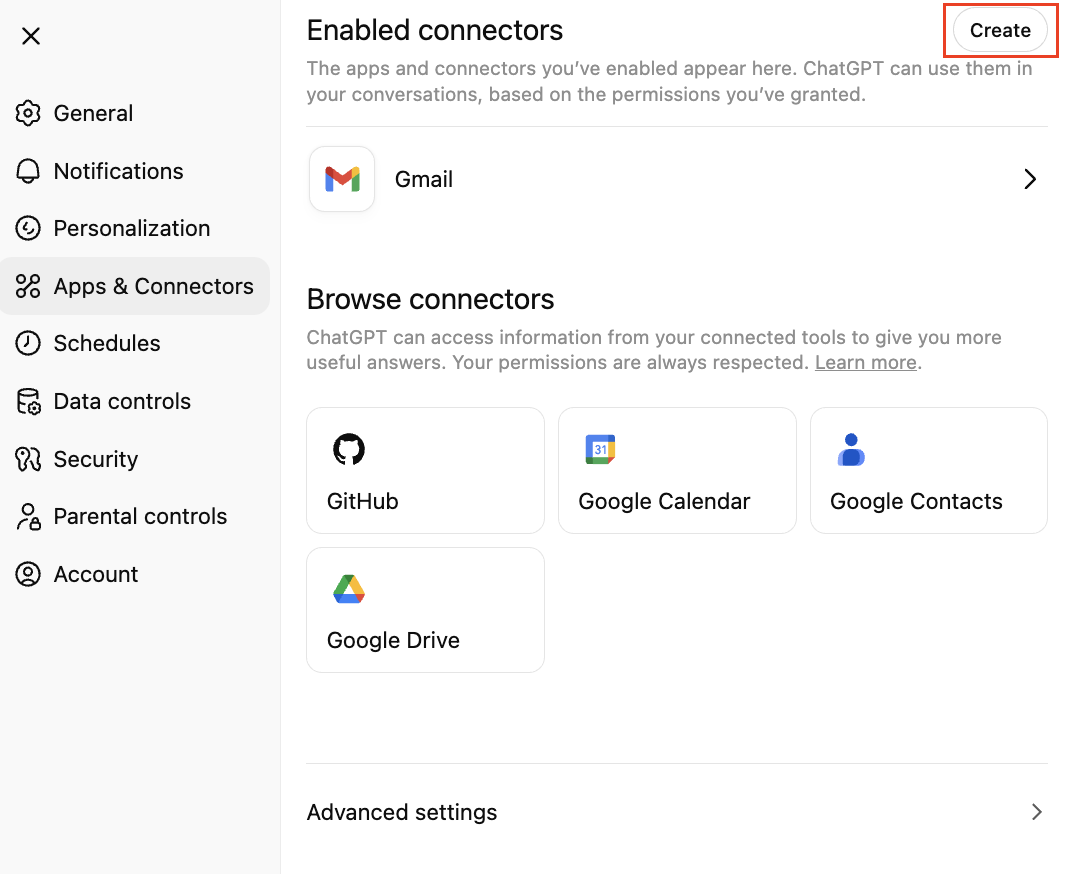
Step 1. Navigate to Settings → Apps & Connectors → Create.
Step 2. Enter the MCP server endpoint and required metadata and choose an authentication method if applicable.
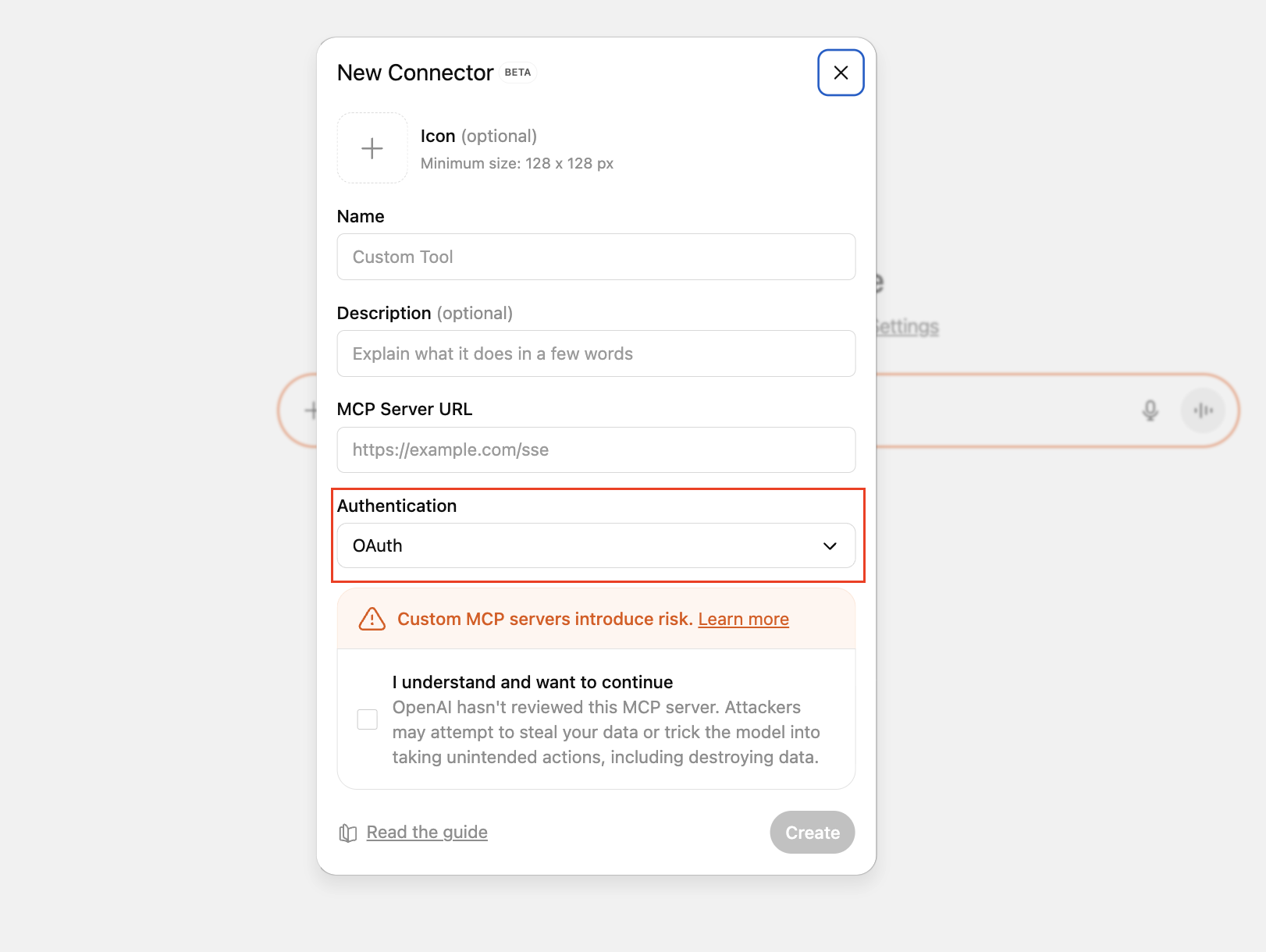
Step 3. Save and test the connector in ChatGPT by selecting it from the tools menu.
When performing write or modify actions, ChatGPT displays an explicit confirmation modal before execution. Currently, individual read/write permissions cannot be toggled within a connector.
Publishing and Using Connectors
Only workspace admins can publish connectors after successful testing.
Published connectors appear in the workspace’s approved list and become available for authorized users. Connectors cannot be updated after publishing — any modification requires creating a new version.
Published connectors appear in the workspace’s approved list and become available for authorized users. Connectors cannot be updated after publishing — any modification requires creating a new version.
Once published, users can select one or more connectors in ChatGPT to combine data sources or automate multi-step workflows, such as retrieving information and creating a ticket based on the results.
Security and Compliance
Developer Mode provides powerful capabilities and must be used responsibly. ChatGPT always requests confirmation for write or modify actions, and admins receive security warnings when enabling connectors with elevated permissions.
Organizations are responsible for verifying the safety and compliance of both custom-built and third-party connectors before deployment.
For Enterprise and Education users, conversations involving connectors are available through the Compliance API, ensuring auditability. However, Developer Mode does not introduce additional Compliance API fields or new tracking options at this stage.
In Summary
Developer Mode marks a major step in turning ChatGPT into a true business automation platform.
With secure MCP connectors, controlled publishing, and role-based access, companies can now connect ChatGPT directly to their operational systems — bridging AI intelligence with real business workflows.
With secure MCP connectors, controlled publishing, and role-based access, companies can now connect ChatGPT directly to their operational systems — bridging AI intelligence with real business workflows.
Want to connect your CRM, ERP, Helpdesk, or any other system to ChatGPT — securely and efficiently? Book a consultation to learn how Developer Mode can automate your workflows.